

Pulse PRO Automate RTI Smart Shade Control Guide User

ZENZAKALELAYO PULSE PRO PHEZULUVIEW
Phakamisa amava akho okuziSebenzisa ngokudibanisa ngaphandle komthungo i-Automate motorized shades kwiiNkqubo zoLawulo lwe-RTI. I-Automate Pulse PRO inikezela ngokudityaniswa okunamandla kunye nokulawulwa komthunzi ocacileyo kunye nokunxibelelana ngeendlela ezimbini, ukubonelela ngohlaziyo lwexesha langempela kwisikhundla somthunzi kunye namanqanaba ebhetri. Iquka zombini i-Ethernet (CAT 5) kunye ne-2.4GHz uxhulumaniso olungenazintambo, i-Pulse PRO iqinisekisa ukudityaniswa kwe-automation yekhaya ngokusebenzisa i-port ye-RJ45 ekulula ukufikelela kuyo emva kwe-hub. Ihabhu nganye ixhasa ukuya kuthi ga kwimithunzi engama-30, iyenze ibe sisisombululo esiguquguqukayo kuyo nayiphi na indlela yokuseta ekhaya.
NDIYAQALISA:
In order to integrate your motorized window treatments with RTI Control System, you will need to have:
- Downloaded the free Automate Pulse PRO via the Apple App Store (available under iPhone /iPad apps) or the Google Play Store.
- Purchased one or more Automate Pulse PRO depending on size of the space and additional repeaters if is required.
- Integrated your motorized window treatments onto Automate Shades App.
INSTRUCTIONS INCLUDED:
- Set up instructions for both the Automate Shades App & Automate Pulse PRO.
- RTI Driver Installation Specification.
- RTI Control System Driver Operating Guide.
- Integration Diagram.
- Integration FAQ’s.
IMBALI YOHLAZIYO:
- Initial release of the driver.
IINKCUKACHA ZAJIKELELE:
- The Automate Pulse PRO Operating Guide for information on setup of the system. This driver is for control and feedback only. Setup of the Automate Pulse PRO Hub must be completed prior to setting up driver. Contact Rollease Acmeda for information on how to complete setup using the Hub and App. This driver is for the Automate Pulse PRO Hub only and control motors (i.e. shades) via TCP Communication.
IISETHINGI ZOKUQHAGAMSHELWA: The Network TCP is the only method for communicating with the Pulse PRO Hub. Enter the IP Address of the Hub in the TCP Address field.
MOTOR COUNT (i.e. Shade Count): Enter the number of motors (Shades) that this Pulse PRO is controlling using the App to have the same capability on RTI Control System Driver.
MOTOR NAME (i.e. Shade Naming): Enter a unique name for each motor (i.e. shade). When the driver is running on the processor, the Motor or Shade name is updated automatically accordingly named on the Automate Shades App.
MOTOR ADDRESS (i.e. Shade Address): Enter the motor address that corresponds to the motor (i.e. shade) to be controlled. This address is acquired during the Automate App setup on the system.
DRIVER COMMAND: The control commands are available for movement of motors (i.e. shades) up and down as well as adjusting the shade to a discrete level by entering a value as a percentage.
DRIVER VARIABLES: Feedback variables are available for initialization state, connection state, and motor (i.e. shade) specific.
DRIVER INSTALATION:
- Khulula izixhobo:
• In this case, were used XP3 Processor and a KX3 Touch Panel to exemplify the communication between the RTI Control System and Automate Pulse PRO.
• XP3 – Use provided power supply to power up processor. Also connect to network (make sure to use ethernet connection and not RS-232). If you have a POE connection, then the XP-3 can be powered that way as well.
• I-KX3 – Use provided power supply (has a RJ-45 end) to power the KX3 through the Control Port on the back of the unit. Connect this to the network as well. If you have a POE connection, then the KX3 can be powered that way as well. - Unzip ifayile ye file equlathe umqhubi kunye sample file. Khuphela umqhubi file (Rollease Pulse.rtidriver) to Integration Designer’s Control Driver Library (Documents\Integration Designer\Control Drivers). We will open the sample file in Integration Designer APEX
- Load Integration Designer APEX onto your computer and launch software.
- Open provided Integration Designer APEX file (Rolelisa iPulse Sample File.apex) ukusuka kwi File imenyu.

- Use the Automate Shades App to get the Hub IP address. On Manage Hub screen, you have the full Hub information. Enter “Hub IP Address” as one variable on the connection settings on Integration Designer Software.

- Kule example, yayisetyenziswa 2 motors/ithunzi kuphela. Imoto "inombolo yokubala" iya kugqiba ukuba zingaphi iinjini eziya kuboniswa kuluhlu olungezantsi kwayo. Yongeza "iGama leMoto" elahlukileyo kwimoto nganye ekolu luhlu kwaye ufake "idilesi yeMoto" yomthunzi ngamnye ngokufumaneka kwi-Automate Shades App kwisikrini sesixhobo.

- Click on the “Download” icon from the top toolbar. This will open a screen with all devices available on Integration Designer. After that, click on the “USB” link that corresponds to your processor (in this case for the XP-3) in the Target column. When clicking that, a new window will open that shows all processors in your system. Select that one it corresponds to your processor and click on “Use Select Device”. Then after the window closes click the “Send” button in the Download column.
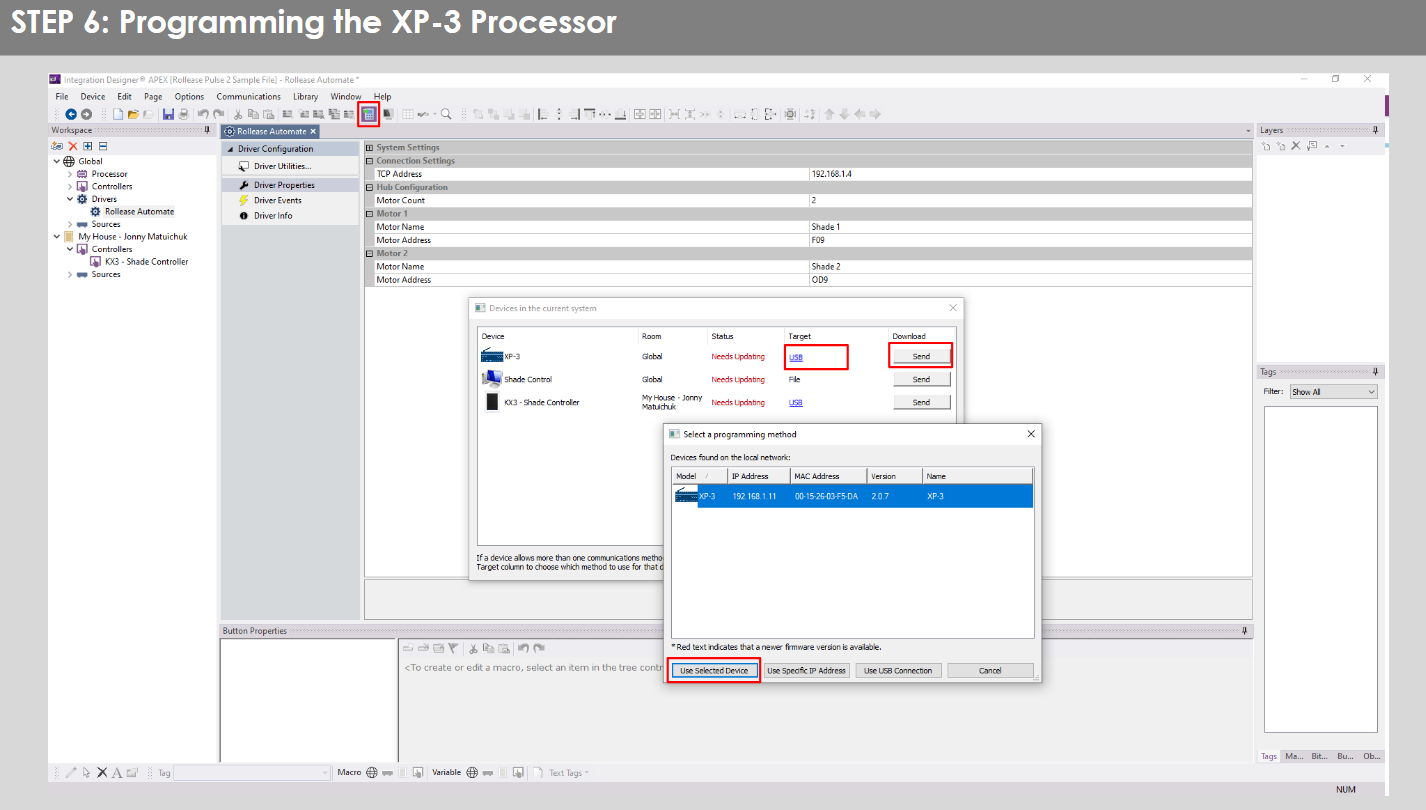
- Repeat the same process for KX3 Touch Pad.

- There is also a Virtual Panel control provided in the file eya kudala umlawuli wekhompyuter yakho.


- To launch the Virtual Panel, click the “Send” button like you did with the previous devices. Since this is a virtual device you will be directed to save the Virtual Panel to a location on your computer.

- Once you save the Virtual Panel it will launch.

Iimpazamo eziqhelekileyo:
- Ukufaka idilesi ye-IP engalunganga kumgca wokumisela "Idilesi ye-IP".
If you’re failing to communicate with the devices, double check this!
UQHAGAMSHELO LWENKQUBO YE-RTI:

IMIBUZO EBUZWA QHO:
Q. Akukho Pulse PRO ifunyenweyo.
A. Qinisekisa ukuba i-Automate Pulse PRO yakho iqhagamshelwe kwinethiwekhi echanekileyo kwaye ufumane idilesi ye-IP ekhoyo kwaye usanxibelelana nenethiwekhi usebenzisa i-Automate Shades App.
Q. Imida yomthunzi ayimiselwanga kakuhle.
A. Calibrate shade limits with your Rollease Acmeda remote before setting the appropriate open and close time within RTI Control System.
Q. Umthunzi akashukumi kwaphela.
A. Make sure the selected Pulse PRO Hub is the correct Pulse PRO Hub for the shade to be controlled. Confirm the correct bindings are set in the RIT Control System connections tab between the Pulse PRO Hub and Shade drivers.
Q. We get unexpected responses from the RTI system, or “?” symbols
A. Qinisekisa ukuba lonke uqhagamshelo usebenzisa i-ethernet port okanye iWi-Fi isebenza kakuhle. Uqhagamshelo oluphosiweyo luyaziwa ngokuvelisa iziphumo ezingafunekiyo okanye ebezingalindelekanga.
IZIXHOBO ZOKUXHASA:
Ngoncedo olongezelelweyo, qhagamshelana nomthengisi wakho, ndwendwela yethu webindawo kwi www.rolleaseacmeda.com

Amaxwebhu / Izibonelelo
 |
I-Automate Pulse PRO Automate RTI Smart Shade Control [pdf] Isikhokelo somsebenzisi RTI, Pulse PRO Automate RTI Smart Shade Control, Automate RTI Smart Shade Control, Smart Shade Control, Shade Control |