
1. Intshayelelo
Thank you for choosing the BOSGAME P3 Mix Mini PC. This manual provides essential information for setting up, operating, maintaining, and troubleshooting your new mini PC. Please read it carefully before use and retain it for future reference.
2. Yintoni ekwiBhokisi
Qinisekisa ukuba zonke izinto ezidweliswe ngezantsi zibandakanyiwe kwiphakheji yakho:
- 1x P3 MIX Mini PC
- 1x Intambo yeHDMI
- 1x VESA Mount & Screws
- I-1x i-Adapter yaMandla
- 1x Incwadi Yomsebenzisi
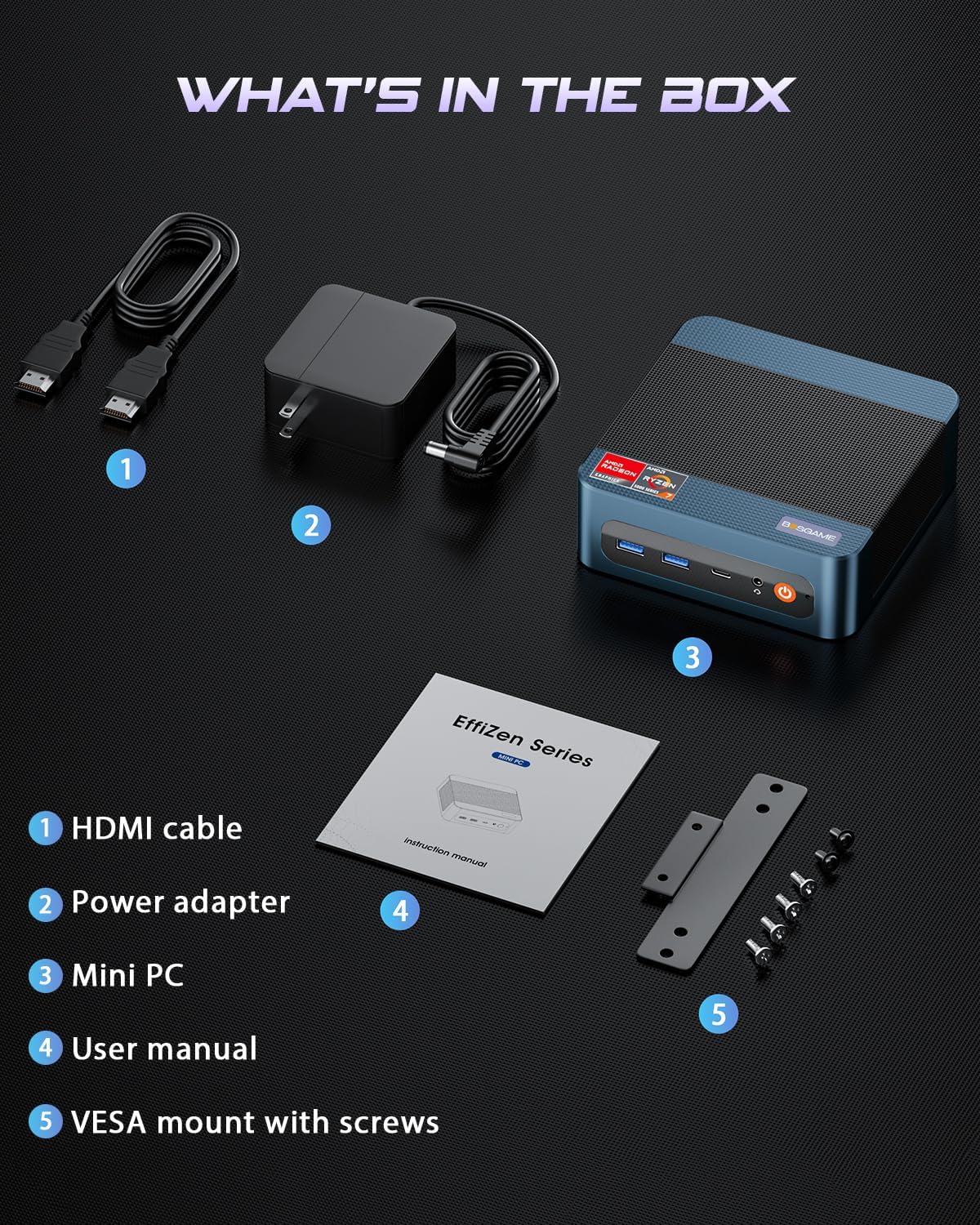
This image displays the BOSGAME P3 Mix Mini PC and its included accessories: an HDMI cable, a power adapter, the mini PC unit, a user manual, and a VESA mount with screws for installation.
3. Imveliso iphelileview
The BOSGAME P3 Mix Mini PC is a compact desktop computer designed for various applications, from home office tasks to gaming and 4K video editing. It features a powerful AMD Ryzen 7640HS processor and Radeon 760M graphics.

This image highlights the core specifications of the mini PC, including its AMD Ryzen 5 7640HS processor, AMD Radeon 760M GPU, 16GB DDR5 RAM, 512GB M.2 PCIe 3.0 x4 SSD, support for 8K 60Hz display, USB-4 (40Gbps) connectivity, Wi-Fi 6E AX210, and Bluetooth 5.2.
This diagram illustrates the various input/output ports available on the mini PC, including power input, dual 2.5G LAN, HDMI, DisplayPort, USB 2.0, USB 4, USB 3.2 ports, and a 3.5mm audio jack.
Video 3.1: BOSGAME Ryzen 5 7640HS MINI PC Overview. Le vidiyo ibonelela ngokubonwayo ngaphezuluview of the BOSGAME P3 Mix Mini PC, showcasing its compact design, internal components, port layout, and connectivity features.
4. Imiyalelo yokuSeta
4.1 Ukuqhagamshela i-Adapter yaMandla
- Connect the power adapter cable to the DC 19V 6.3 port on the rear of the mini PC.
- Xhuma iadaptha yamandla kwindawo yokuphuma eludongeni.
4.2 Ukuqhagamshela kwiDisplay
The P3 Mix Mini PC supports triple display output via HDMI, DisplayPort, and USB4.
- Connect one end of an HDMI cable to the HDMI port on the mini PC and the other end to your monitor.
- For additional displays, connect a DisplayPort cable to the DP port and/or a USB4 cable to the USB4 port, then connect to your respective monitors.
- Ensure your monitors are powered on and set to the correct input source.

This image demonstrates how to set up a triple display configuration with the mini PC, utilizing the DP 1.4, HDMI 2.0, and USB4 ports to connect to multiple monitors.
4.3 Ukudibanisa iiperipherals
- Connect your USB keyboard and mouse to any available USB ports (USB 2.0, USB 3.2).
- Ukuze ufumane inethiwekhi eneentambo, qhagamshela intambo ye-Ethernet kwenye yeeport ze-2.5G LAN.
- For audio output, connect speakers or headphones to the 3.5mm audio jack.
4.4 Amandla Okuqala Avuliwe
- After connecting all necessary cables, press the power button located on the front of the mini PC.
- The system will boot up, and you should see the operating system on your connected display(s).
5. Imiyalelo yokusebenza
5.1 Ukuvula/Vala uMbane
- Ukuvula amandla: Cofa iqhosha lamandla kube kanye.
- Ukuvala Phantsi: From the operating system, select 'Shut Down'. Alternatively, press and hold the power button for 5 seconds to force a shutdown (use only when necessary).
- Ukuqalisa kwakhona: From the operating system, select 'Restart'.
5.2 UQhagamshelwano lweNethiwekhi
- NONE Connect an Ethernet cable to one of the two 2.5G LAN ports. The system will automatically detect the connection.
- Wireless Connection (Wi-Fi 6E): Navigate to your operating system's network settings, select the desired Wi-Fi network, and enter the password.
5.3 Uqhagamshelo lweBluetooth
The mini PC supports Bluetooth 5.2 for connecting wireless peripherals.
- Qinisekisa ukuba isixhobo sakho seBluetooth sikwimo yokubhangqa.
- On your mini PC, go to the operating system's Bluetooth settings.
- Khangela i and select your device to pair.
6. ULondolozo kunye noPhuculo
6.1 RAM and SSD Upgrades
The BOSGAME P3 Mix Mini PC allows for easy upgrades of its DDR5 RAM and M.2 PCIe SSD. Always power off and unplug the device before performing any internal maintenance.

This image provides a visual guide for upgrading the RAM and SSD. The process involves removing screws, carefully opening the base plate, repositioning the system fan, and then replacing the memory modules and SSD.
- Cima umbane kwaye ukhuphe iplagi: Ensure the mini PC is completely powered off and disconnected from the power source.
- Susa izikrufu: Locate and remove the screws securing the bottom panel.
- Open Base Plate: Carefully open the base plate to access the internal components.
- Izixhobo zokufikelela: You may need to gently move the system fan or other components to gain full access to the RAM and SSD slots.
- Replace RAM/SSD: Install new DDR5 SO-DIMM RAM modules into the dual channel slots (up to 64GB supported) or a new M.2 2280 NVMe PCIe 3.0 SSD (up to 4TB per slot, 8TB total capacity).
- Hlanganisa kwakhona: Carefully reassemble the mini PC, ensuring all connections are secure and screws are tightened.
6.2 Ukucoca
- Regularly clean the exterior of the mini PC with a soft, dry cloth.
- Use compressed air to clear dust from ventilation grilles to ensure optimal airflow and prevent overheating. Do not insert objects into the vents.
7. Ukuxazulula ingxaki
7.1 Akukho Mandla
- Qinisekisa ukuba iadaptha yamandla iqhagamshelwe ngokukhuselekileyo kwiPC encinci nakwiplagi yamandla esebenzayo.
- Qinisekisa ukuba umbane uyasebenza ngokuplaga kwesinye isixhobo.
- Try a different power adapter if available and compatible.
7.2 Akukho ziPhumo zokuBonisa
- Check all display cable connections (HDMI, DP, USB4) between the mini PC and the monitor(s).
- Ensure the monitor(s) are powered on and set to the correct input source.
- Try connecting to a single monitor using a different cable or port.
- If you recently reinstalled the operating system, ensure all display drivers are correctly installed. Some users have reported needing specific drivers from the manufacturer for optimal display performance.
7.3 Imiba yoQhagamshelwano lweNethiwekhi
- Intambo: Jonga uqhagamshelo lwentambo ye-Ethernet. Qinisekisa ukuba i-router/imodem yakho isebenza ngokuchanekileyo.
- Wireless: Ensure Wi-Fi is enabled in your operating system settings. Re-enter the Wi-Fi password. Restart your router/modem.
7.4 Imiba yoMsebenzi
- Vala usetyenziso olungeyomfuneko olusebenza ngasemva.
- Ensure the mini PC has adequate ventilation and is not overheating.
- Check for operating system updates and driver updates.
- Verify that the RAM and SSD are properly seated if you have performed an upgrade.
8. Iinkcukacha
| Uphawu | Inkcazo |
|---|---|
| Uphawu | BOSGAME |
| Igama loMfanekiso | P3 |
| Imodeli yeCPU | AMD Ryzen 5 7640HS (6C/12T, up to 5.0 GHz) |
| Umzobo weCoprocessor | Radeon 760M (Integrated) |
| Inkumbulo ye-RAM | 16GB DDR5 4800MHz (2x8GB), Max 64GB |
| Isakhono sokuGcina iMemori | 512GB PCIe 3.0 SSD (M.2 2280), Max 8TB (2x4TB) |
| Inkqubo yokwenza | OS11 Support Win/Ubuntu/Linux |
| Ujongano Lweziphumo Zevidiyo | HDMI 2.0, DisplayPort 1.4, USB4 (8K@60Hz) |
| Itekhnoloji yoQhagamshelwano | Dual 2.5G LAN, Wi-Fi 6E (802.11ax), Bluetooth 5.2 |
| Amazibuko e-USB | 3x USB 3.2 (10Gbps), 1x USB 4 (40Gbps), 2x USB 2.0 (480Mbps) |
| Imveliso yomsindo | I-3.5mm yeJack yeVidiyo |
| Ubunzima bento | 1.26 Iikhilogram |
| Uhlobo lwePlug yaMandla | Uhlobo A - iiphini ezi-2 (eMntla Melika) |
9. Iwaranti kunye neNkxaso
9.1 Ulwazi lweWaranti
BOSGAME offers a 1-year limited warranty for the P3 Mix Mini PC. This warranty covers manufacturing defects and ensures product quality.
9.2 Inkxaso yabaThengi
For any product-related inquiries, technical assistance, or warranty claims, please contact BOSGAME customer support. You can reach out via the following methods:
- I-imeyile: Qingzhuomao@163.com
- Kwi-intanethi: Visit the BOSGAME store on Amazon or their official webindawo yee-FAQs kunye nezibonelelo zenkxaso.
A professional after-sales team is available to assist you with your needs.