
1. Intshayelelo
This manual provides detailed instructions for setting up, operating, maintaining, and troubleshooting your ASUS RT-BE82U BE6500 Dual-Band WiFi 7 Router. Please read this manual thoroughly before using the device to ensure optimal performance and safety.
Ezona mpawu:
- Ultrafast WiFi 7 (802.11be) dual-band speeds up to 6500 Mbps.
- Five 2.5GbE Ports for optimized wired connectivity.
- Smart AiMesh Extendable Network for whole-home seamless roaming.
- Multi-link Operation for stable internet connections and efficient data transfers.
- Commercial-Grade AiProtection Pro powered by Trend Micro for advanced network security.
- Advanced Parental Controls for managing internet activity.
2. Imixholo yePakethe
Qinisekisa ukuba zonke izinto zikhona kwiphakheji yakho:
- ASUS RT-BE82U Router
- Intambo ye-RJ-45
- Iadaptha yamandla
- Isikhokelo sokuQalisa ngokukhawuleza
- Ikhadi lewaranti
3. Ukuseta kunye noFakelo
Follow these steps to set up your ASUS RT-BE82U router:
- Khupha i-Router: Susa ngokucokisekileyo i-router kunye nazo zonke izincedisi kwi-package.
- Qhagamshela ii-Antenna: Ensure all four external antennas are securely attached and positioned for optimal signal.
- Qhagamshelana kwi-Intanethi:
- Connect one end of the provided RJ-45 cable to the WAN port (blue) on the back of the RT-BE82U router.
- Connect the other end of the RJ-45 cable to your modem's LAN port.
- Vula amandla: Connect the power adapter to the router's DC-IN port and then plug it into a power outlet. Press the power button to turn on the router.
- Initial Configuration (via ASUS Router App):
- Download the ASUS Router app from your mobile device's app store (available on iOS and Android).
- Open the app and follow the on-screen instructions to detect and configure your new router. This includes setting up your Wi-Fi network name (SSID) and password.
- Qinisekisa uQhakamshelwano: Once setup is complete, check the LED indicators on the front of the router. The WAN, 2.4GHz, and 5GHz LEDs should be solid white, indicating a successful connection.

Umzobo 3.1: Ngaphambili view of the ASUS RT-BE82U BE6500 Dual-Band WiFi 7 Router with antennas extended.

Umzobo 3.2: Ngasemva view showing the 2.5GbE WAN, 2.5GbE LAN ports, USB WAN, DC-IN, Power button, and Reset button.
4. Ukusebenzisa iRouter yakho
4.1. Network Management via ASUS Router App
The ASUS Router app provides comprehensive control over your network. You can:
- Beka iliso kwitrafikhi yenethiwekhi kunye nezixhobo eziqhagamshelweyo.
- Manage Wi-Fi settings for 2.4GHz and 5GHz bands.
- Set up guest networks for visitors.
- Configure advanced security features like AiProtection Pro.
- Implement parental controls to manage internet access for family members.

Figure 4.1: ASUS Router App interface for managing parental controls and network settings.
4.2. AiMesh System
The RT-BE82U supports ASUS AiMesh technology, allowing you to create a whole-home mesh Wi-Fi system by adding compatible ASUS routers. This extends coverage and eliminates Wi-Fi dead zones, providing seamless roaming throughout your home.
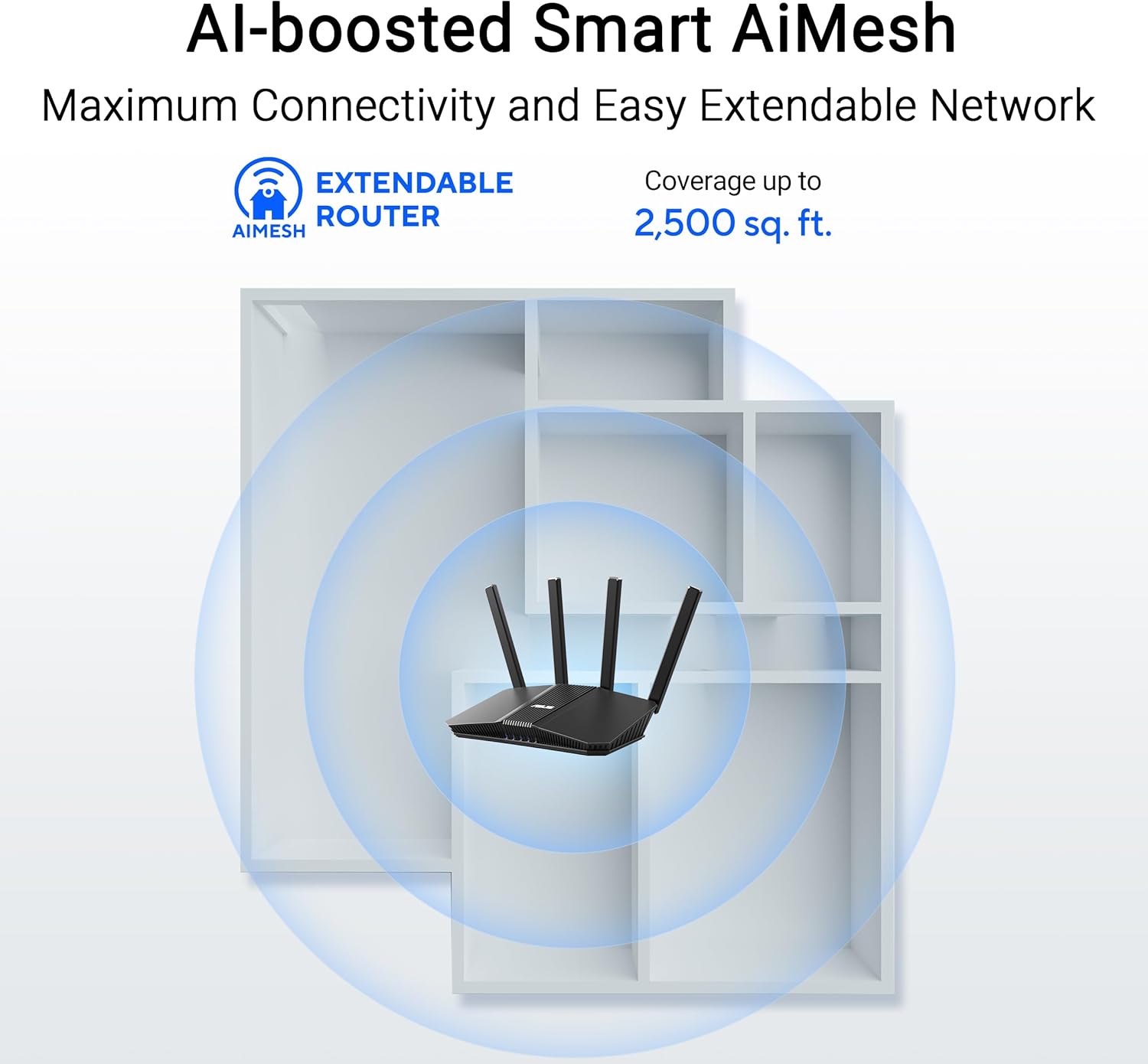
Figure 4.2: AiMesh system extending Wi-Fi coverage up to 2,500 sq. ft.
4.3. Advanced Network Security
The router includes AiProtection Pro, a commercial-grade network security suite. This feature provides real-time network protection against internet threats, malicious websites, and intrusion prevention. It also offers a one-tap security scan and Safe Browsing features.

Figure 4.3: AiProtection Pro interface within the ASUS Router App.
5. Isondlo
To ensure the longevity and optimal performance of your router, consider the following maintenance tips:
- Uhlaziyo lweFirmware: Regularly check for and install firmware updates via the ASUS Router app or the web interface. Updates often include security patches and performance improvements.
- Ukubekwa: Place the router in a central location, away from obstructions and other electronic devices that may cause interference. Ensure good airflow around the device to prevent overheating.
- Ukucoca: Gcina i-router icocekile kwaye ingenaluthuli. Sebenzisa ilaphu elithambileyo nelomileyo ukusula umphandle. Musa ukusebenzisa izicoci zolwelo.
- Qala kwakhona Ngamaxesha athile: A periodic restart (e.g., once a month) can help clear temporary issues and refresh network performance.
6. Ukuxazulula ingxaki
Ukuba udibana nemiba nge-router yakho, zama la manyathelo alandelayo okusombulula ingxaki:
- Akukho Qhagamshelwano kwi-Intanethi:
- Check all cable connections (WAN, LAN, power) to ensure they are secure.
- Restart your modem and then your router.
- Verify your internet service provider (ISP) connection is active.
- Isantya esicothayo se-Wi-Fi:
- Qinisekisa ukuba izixhobo zakho ziqhagamshelwe kwibhendi ye-5GHz ukuze zikhawuleze ngokukhawuleza, ukuba ziyaxhaswa.
- Ukunciphisa ukuphazamiseka ngokususa i-router kwezinye izinto zombane.
- Check for bandwidth-intensive applications running in the background.
- Consider adding an AiMesh node to extend coverage if you have dead zones.
- Ayinakufikelelwa kwiSetingi zeNdlela:
- Qinisekisa ukuba isixhobo sakho siqhagamshelwe kwinethiwekhi yeWi-Fi yerouter okanye ngentambo ye-Ethernet.
- Zama ukufikelela kwi-router web interface using the default IP address (e.g., 192.168.1.1) or via the ASUS Router app.
- Ukuphindisela kwisetingi sefetri: If all else fails, perform a factory reset. Locate the Reset button on the back of the router (refer to Figure 3.2), press and hold it for 5-10 seconds until the power LED blinks, then release. This will restore the router to its default settings.
7. Iinkcukacha
| Uphawu | Iinkcukacha |
|---|---|
| Uphawu | ASUS |
| Igama loMfanekiso | I-RT-BE82U |
| Iklasi ye-Frequency Band | Dual-Band |
| Umgangatho woNxibelelwano olungenazintambo | 802.11be (WiFi 7), 802.11ac, 802.11ax, 802.11n |
| Ireyithi yokuGqithisela ngeDatha | Up to 6500 Mbps (5764 Mbps on 5 GHz, 688 Mbps on 2.4 GHz) |
| Inani lamaZibuko | 5 (Five 2.5GbE Ports) |
| Uhlobo lwe-antenna | Fixed (4 Antennas) |
| Umgaqo woKhuseleko | AiProtection, VPN, Let's Encrypt, DNS-over-TLS, SSH, Security Scan, Firewall, WPS support, WPA/WPA2/WPA3-Personal, WPA/WPA2-Enterprise, WPS |
| AiMesh Support | Yes (Extendable Router) |
| Imilinganiselo (L x W x H) | 5.8"L x 3.8"W x 9.3"H |
| Ubunzima bento | 1.1 iiponti |
8. Ulwazi lweWaranti
The ASUS RT-BE82U BE6500 Dual-Band WiFi 7 Router comes with a Iwaranti yeminyaka emi-3. Please refer to the included Warranty Card in your package for detailed terms and conditions, including information on service and support.
9. Inkxaso
For further assistance, technical support, or to download the latest drivers and firmware, please visit the official ASUS support website or use the ASUS Router app. You can also find additional resources and FAQs on the ASUS webindawo.
Inkxaso ye-ASUS Webindawo: www.asus.com/support/
I-ASUS Router App: Available on the Apple App Store and Google Play Store.


