
1. Intshayelelo
This manual provides detailed instructions for the installation, operation, and maintenance of your Podofo Double Din Car Stereo. This unit features a 7-inch touchscreen, Android 10.1 operating system, Wireless Apple CarPlay, Wired Android Auto, GPS navigation, Bluetooth, WiFi, USB connectivity, FM/RDS radio, and support for a backup camera. Please read this manual thoroughly before use to ensure proper functionality and safety.

Umfanekiso: Ngaphezuluview of the Podofo Double Din Car Stereo in a vehicle dashboard, highlighting its main functionalities.
2. Ukuseta kunye noFakelo
2.1 Imixholo yePakethe
Ngaphambi kokufakela, qinisekisa ukuba zonke izinto ezikhoyo:
- Podofo Double Din Car Stereo Unit
- Ikhamera yokugcina
- Intambo yamandla
- I-antenna yeGPS
- Intambo yokufaka iKhamera
- RCA Input and Output Cables
- Iintambo ze-USB ezi-2
- Screw/Metal Frame for installation
- Incwadana yemiyalelo (olu xwebhu)

Umfanekiso: Imixholo yephakheji yemveliso.
2.2 Imilinganiselo
The installation size of the unit is 178mm x 103mm. The depth is 60mm. Ensure your vehicle's dashboard opening is compatible with these dimensions for a proper fit.
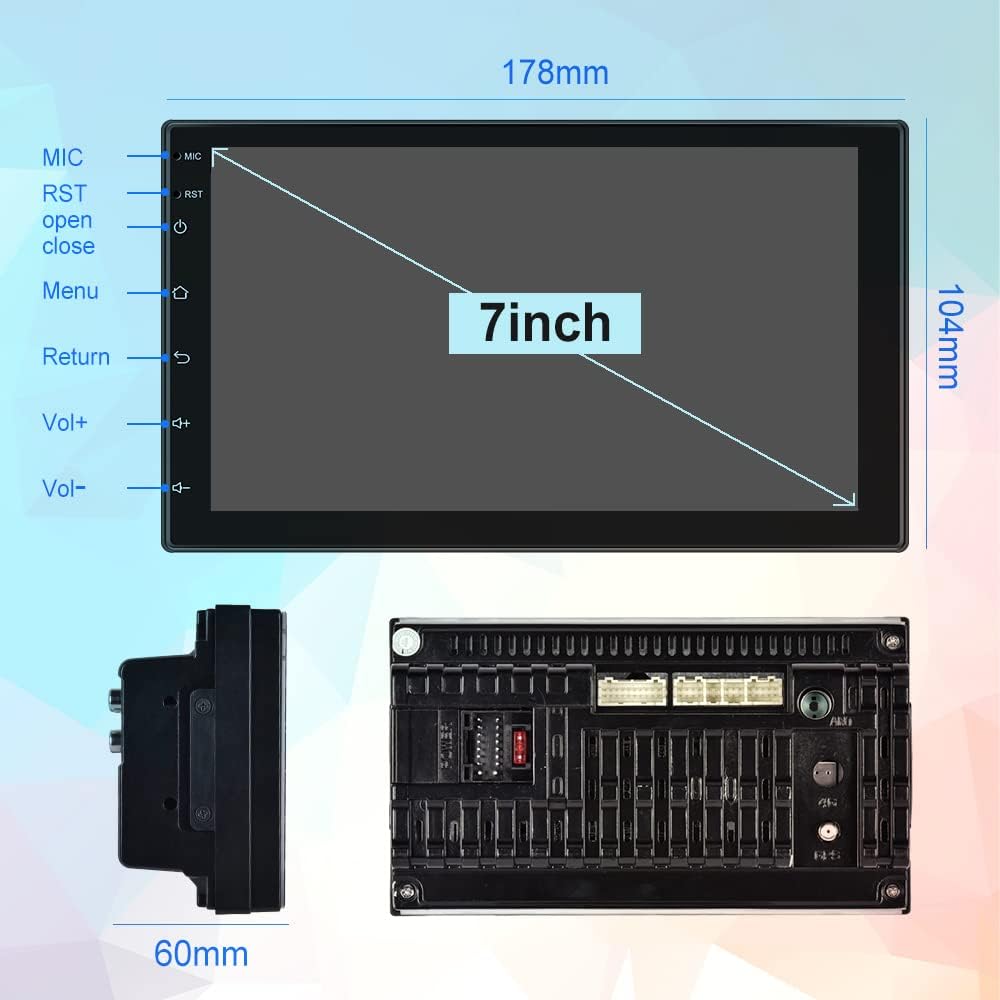
Image: Physical dimensions of the head unit.
2.3 Umzobo wocingo
Refer to the following diagram for correct wiring connections. Incorrect wiring can damage the unit or your vehicle's electrical system. If you are unsure, consult a professional installer.
- Yellow (B+): Constant Power Supply (+12V)
- Red (ACC): Ignition Switch (+12V)
- Mnyama (GND): Ingcingo yaphantsi
- Orange (ILL): Illumination Backlight
- Blue (ANT CONT): Amandla e-Antenna ezenzekelayo
- Brown (SW1) & Pink (SW2): Steering Wheel Control (connect to vehicle's steering wheel control wires)
- White/White-Black: Isithethi sasekhohlo sangaphambili (+/-)
- Gray/Gray-Black: Isithethi sasekunene sangaphambili (+/-)
- Green/Green-Black: Isithethi sasekhohlo esingasemva (+/-)
- Purple/Purple-Black: Isithethi sasekunene esingasemva (+/-)
- Reverse Input: Connect to vehicle's reverse light signal for backup camera activation.
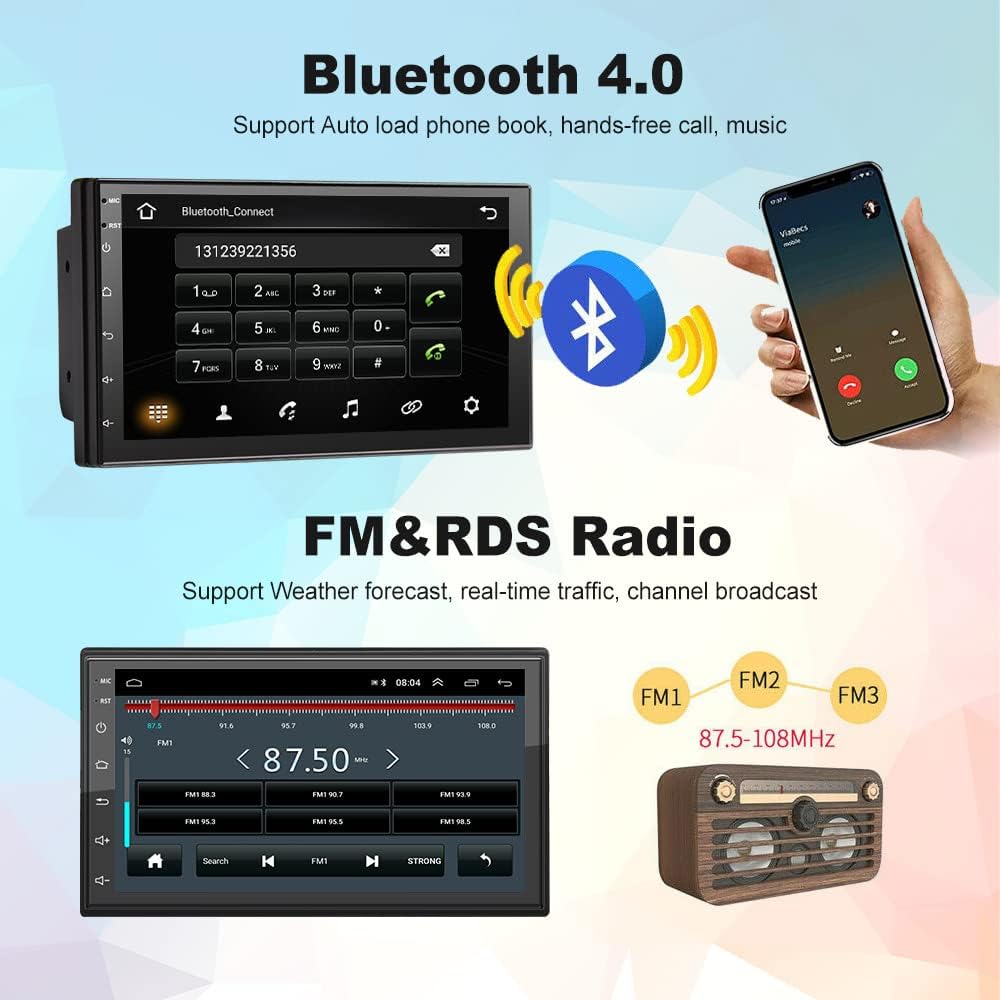
Image: Comprehensive wiring diagram for the car stereo.
2.4 Amandla Okuqala Avuliwe
After completing all wiring, turn on your vehicle's ignition. The unit should power on automatically. Follow any on-screen prompts for initial setup.
3. Imiyalelo yokusebenza
3.1 Wireless Apple CarPlay / Wired Android Auto
This unit supports both wireless Apple CarPlay and wired Android Auto. Connect your smartphone to access navigation, music, calls, and more directly on the stereo's screen.
- UQhakamshelwano lweCarPlay olungenazingcingo:
- Qinisekisa ukuba iBluetooth ivuliwe kwi-iPhone yakho kunye ne-stereo yemoto.
- Pair your iPhone with the car stereo via Bluetooth (device name: CarBT, PIN: 0000).
- Open the 'ZLINK' application on the car stereo.
- If the connection is not successful, manually connect your iPhone to the car stereo's WiFi hotspot. Go to Car Settings > Android Settings > Network & Internet > Hotspot & tethering > Wi-Fi hotspot. Turn on the hotspot and note the network name (e.g., AndroidAP_B442). Connect your iPhone to this WiFi network.
- Once connected via WiFi, the ZLINK app should prompt you to use CarPlay. Confirm the connection.
- After manually connecting to the WiFi of the vehicle, delete the history record in the ZLINK app and then click ZLINK again to connect.
- UQhakamshelwano oluSebenzayo lwe-Android: Connect your Android phone to the stereo via a USB cable. Follow the on-screen prompts to enable Android Auto.
Video: Demonstrates the steps to connect an Android Double Din Car Stereo, including Bluetooth and ZLINK connections for smartphone integration.

Image: Wireless Apple CarPlay and Android Auto interfaces.
3.2 Uqhagamshelo lweBluetooth
The unit features Bluetooth 4.2 for hands-free calling, music streaming, and automatic phonebook loading. To connect:
- Go to the Bluetooth application on the stereo.
- Enable Bluetooth on your smartphone and search for 'CarBT'.
- Pair the devices using the default PIN '0000' if prompted.
- Once connected, you can make/receive calls and play audio through the stereo.
Image: Bluetooth connection interface on the car stereo.
3.3 GPS Navigation & WiFi
The stereo includes built-in GPS navigation and WiFi connectivity.
- GPS Navigation: Supports online and offline maps. You can download offline maps directly from the Play Store.
- WiFi: Connect to your phone's hotspot or a local WiFi network to browse websites and download apps like Chrome, Waze, IGO, Sygic, etc.
3.4 FM/RDS Radio
Access FM radio stations and receive RDS (Radio Data System) information, which displays station names, program content, and other relevant data.
Image: FM radio interface with RDS display.
3.5 Ulawulo lwevili lokuqhuba (SWC)
The unit supports learning functions for your original car's steering wheel controls. This allows you to control the stereo's functions (e.g., volume, track skip) directly from your steering wheel for convenience and safety.
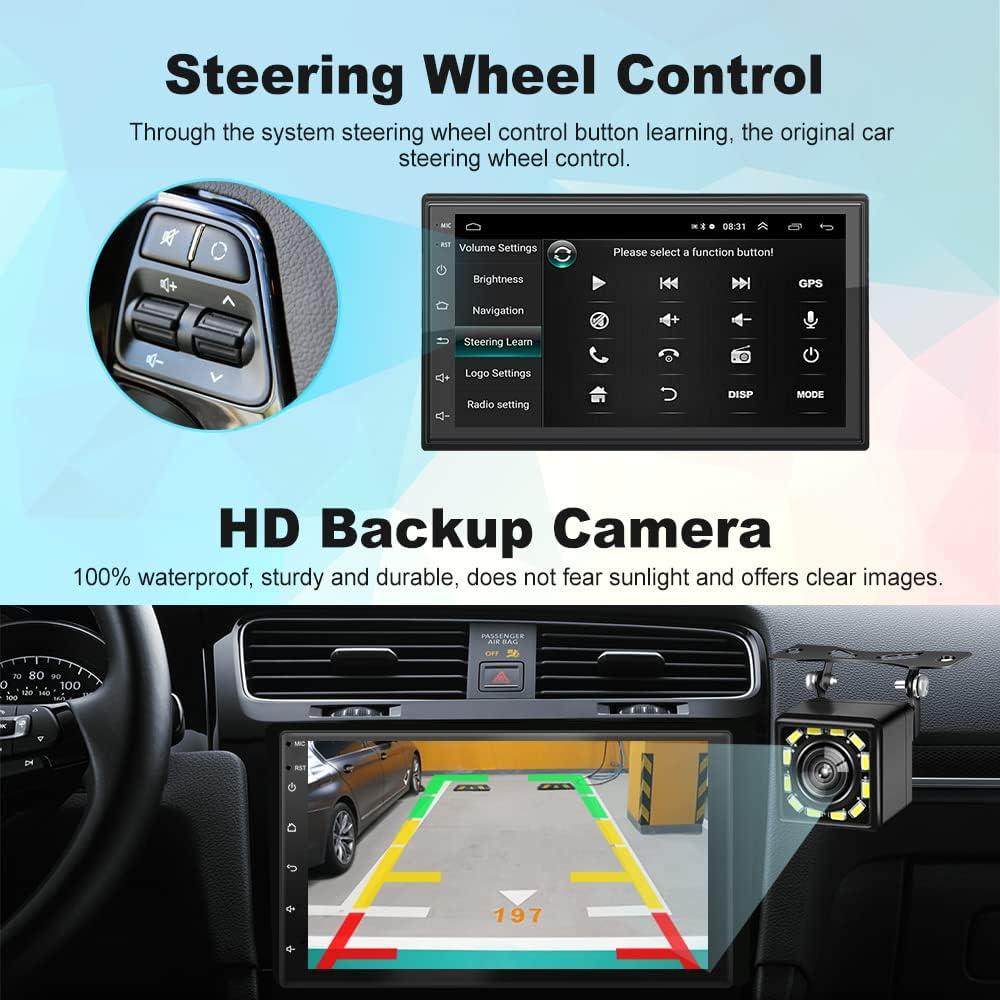
Image: Steering Wheel Control setup interface.
3.6 HD Backup Camera
The included 12-light HD backup camera is waterproof and provides high-definition night vision. When reversing, the stereo automatically switches to display the camera's feed, showing the area behind your vehicle.
Umfanekiso: Ikhamera yokugcina view on the car stereo display.
3.7 Ukwahlula iSkrini sokuSebenza
The split-screen feature allows you to run two applications simultaneously, such as navigation and music playback, without performance issues.

Image: Split Screen functionality displaying two applications simultaneously.
3.8 10-Band EQ Settings
Adjust the audio output to your preference with the integrated 10-band equalizer. This allows for fine-tuning of sound effects for each seat in the car.
Image: 10-band EQ settings interface.
4. Isondlo
Ukuqinisekisa ukuba i-stereo yemoto yakho ihlala ixesha elide kwaye isebenza kakuhle, landela le migaqo yokugcinwa kwayo:
- Ukucoca: Sebenzisa ilaphu elithambileyo nelomileyo ukucoca isikrini sokuchukumisa kunye nomphandle weyunithi. Ziphephe izicoci ezirhabaxa okanye izinyibilikisi.
- Uhlaziyo lweSoftware: Qwalasela okomenzi website or the unit's settings for available software updates to improve performance and add new features.
- Ubushushu: Kuphephe ukubeka isixhobo kwindawo eshushu kakhulu, elangeni ngqo ixesha elide, okanye ekufumeni kakhulu.
5. Ukuxazulula ingxaki
If you encounter issues with your Podofo Car Stereo, refer to the following common problems and solutions:
- Akukho Mandla:
- Check the yellow (B+) and red (ACC) power wires for proper connection to a constant 12V and ignition 12V source, respectively.
- Ensure the black (GND) wire is securely connected to a vehicle ground.
- Verify that the fuse on the power cable is intact. Replace if blown.
- Akukho sandi:
- Check all speaker wire connections (White, Gray, Green, Purple and their black-striped counterparts) to ensure they are correctly connected to your vehicle's speakers.
- Qinisekisa ukuba ivolyum ayithuliswanga okanye isetelwe ubuncinane.
- Verify that the correct audio source is selected.
- Wireless CarPlay/Android Auto Connection Issues:
- Ensure Bluetooth is on and paired correctly.
- If using wireless CarPlay, ensure your iPhone is connected to the stereo's WiFi hotspot as described in section 3.1.
- Restart both your phone and the car stereo.
- Delete any existing Bluetooth/WiFi connections on both devices and attempt to reconnect.
- Izilawuli zevili lokuqhuba azisebenzi:
- Ensure the SW1 and SW2 wires are correctly connected to your vehicle's steering wheel control wires.
- Access the 'Steering Learn' function in the stereo's settings and follow the on-screen instructions to program the controls.
- NONE
- Check the camera input cable connection to the stereo.
- Ensure the reverse input wire is correctly connected to your vehicle's reverse light signal.
- Verify the camera itself is powered and functioning.
If problems persist after attempting these solutions, please contact Podofo customer support.
6. Iinkcukacha
| Uphawu | Inkcazo |
|---|---|
| Uphawu | Podofo |
| Umzekelo | B09C2ZQLDW |
| Ubungakanani beSkrini | 7 intshi |
| Inkqubo yokwenza | Android 10.1 |
| ICPU | 8227L, 4-core 1.3GHz processor |
| Inkumbulo | I-1GB RAM + 16GB iROM |
| Isigqibo | 1024 x 600 |
| Itekhnoloji yoQhagamshelwano | USB, Bluetooth, WiFi |
| Inguqulelo yeBluetooth | 4.2 |
| Imiboniso eyodwa | Wireless Apple CarPlay, Wired Android Auto, GPS Navigation, FM RDS, Backup Camera, Split Screen, Steering Wheel Control |
| Imodi yokuphuma yomsindo | APE/FLAC/WAV/MP3/WMA etc. |
| Uhlobo lokuNyusa | Dashboard Mount (Double Din) |
| Ubunzima bento | Iigram ezili-941 |
7. Iwaranti kunye neNkxaso
Your Podofo Double Din Car Stereo comes with a Iwaranti yeminyaka emi-2 ukususela kumhla wokuthenga. Esi siqinisekiso sibandakanya iziphene zokuvelisa kunye nokungasebenzi kakuhle phantsi kosetyenziso oluqhelekileyo.
For technical support, warranty claims, or any questions not covered in this manual, please contact Podofo customer service through the retailer where you purchased the product or visit the official Podofo webindawo yolwazi loqhagamshelwano.
Nceda ugcine ubungqina bakho bokuthenga ngeenjongo zewaranti.