
Intshayelelo
The StarTech.com SDOCKU33HB is a USB 3.0 SATA Hard Drive Docking Station designed for quick and easy access to 2.5-inch or 3.5-inch SATA solid-state drives (SSDs) and hard disk drives (HDDs). It features a built-in USB Fast Charge hub and supports UASP (USB Attached SCSI Protocol) for enhanced performance with SATA 6Gbps drives. This manual provides instructions for setup, operation, and maintenance of your docking station.
Product Overview
Familiarize yourself with the components and features of your docking station.
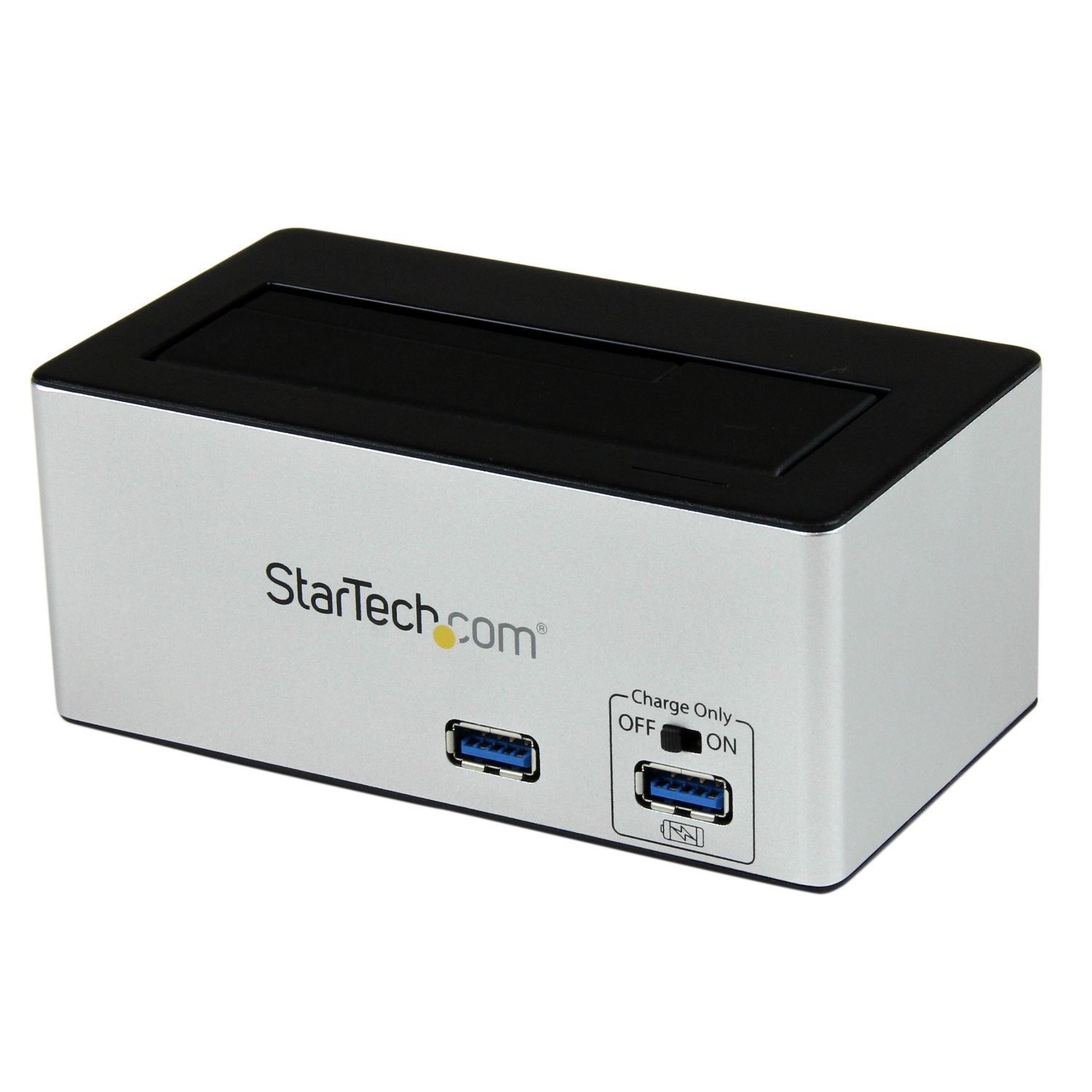
Umfanekiso: The StarTech.com SDOCKU33HB docking station, showing the top-loading drive bay and front panel.
Iimpawu zePaneli yangaphambili
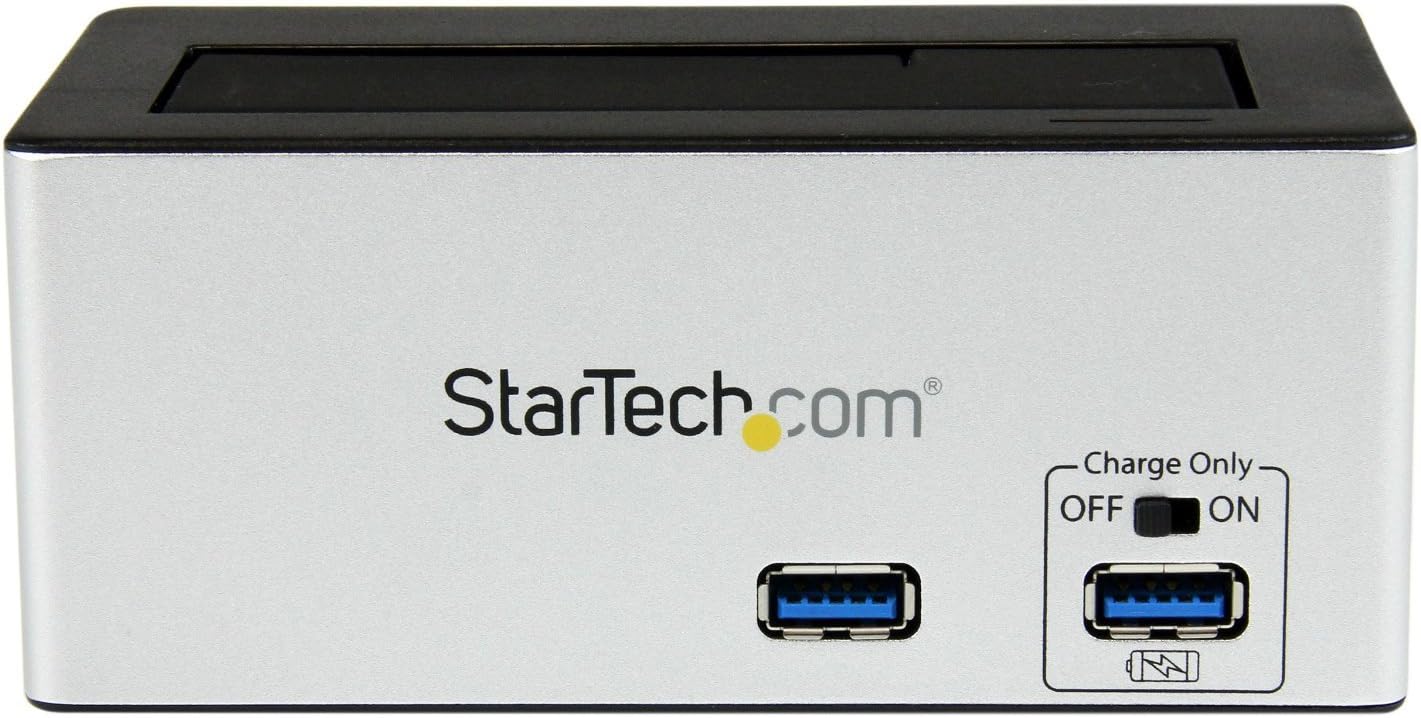
Umfanekiso: Ngaphambili view of the docking station, highlighting the USB 3.0 data port and the USB Fast Charge port with its ON/OFF switch.
- USB 3.0 Data Port: Connects to your computer for data transfer.
- USB Fast Charge Port: Provides accelerated charging for mobile devices. Features an ON/OFF switch for activation.
Iimpawu zePaneli yangasemva

Umfanekiso: Ngasemva view of the docking station, showing the power switch, DC-IN port, USB 3.0 host connection, and the OFF/Sleep switch.
- Ukutshintsha kwamandla: Turns the docking station ON or OFF.
- Izibuko le-DC-IN: Iqhagamshela kwiadaptha yamandla efakiweyo.
- I-USB 3.0 ye-Host Port: Connects the docking station to your computer's USB 3.0 port.
- OFF/Sleep Switch: Controls the sleep mode functionality of the docking station.
Imixholo yePakeji
Verify that all components are present in your package.
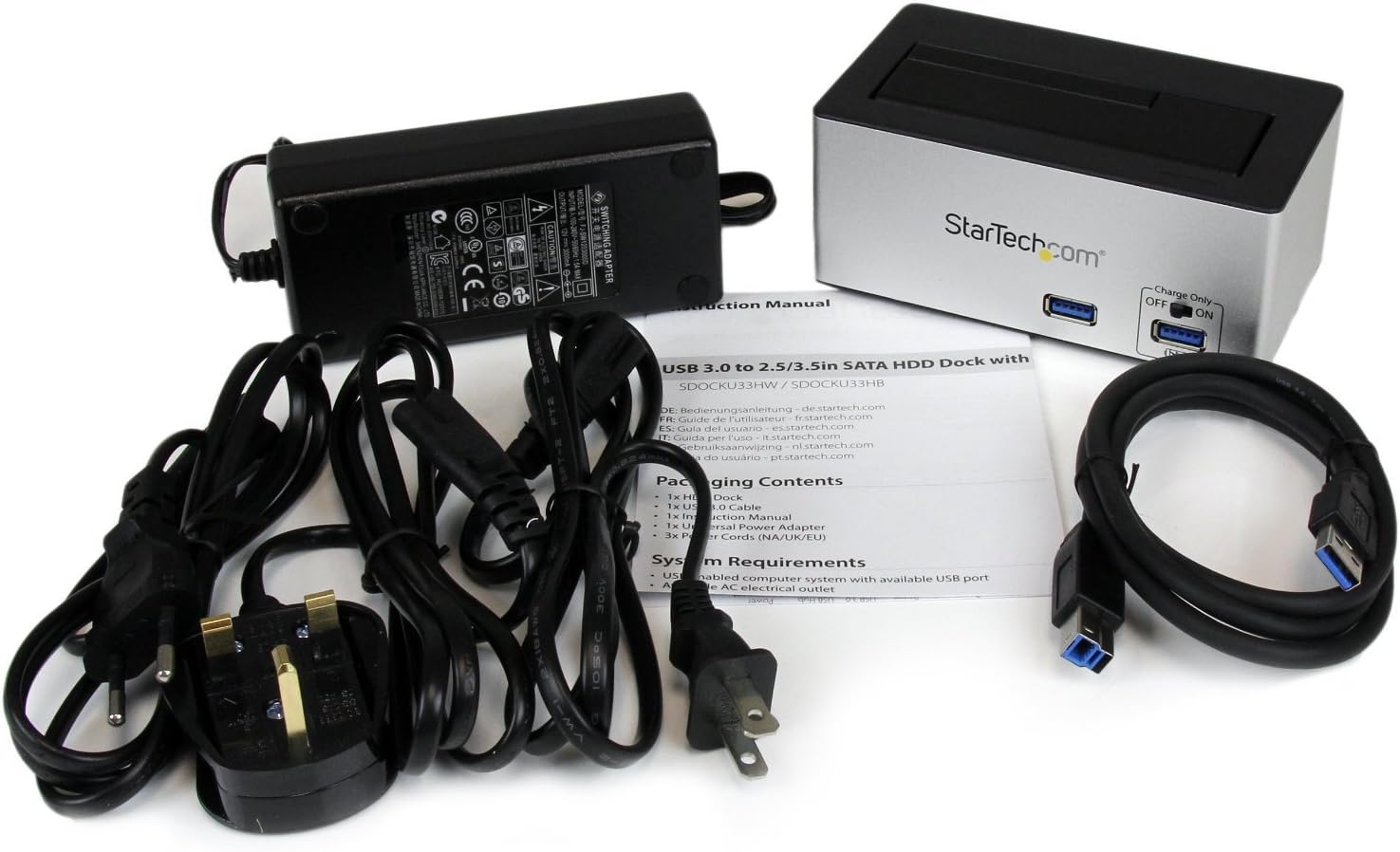
Umfanekiso: The complete package contents, including the docking station, power adapter, USB 3.0 cable, and instruction manual.
- 1x USB 3.0 SATA Hard Drive Docking Station (SDOCKU33HB)
- 1x Universal Power Adapter
- 1x USB 3.0 Cable
- 1x Incwadi yoMyalelo
IiMfuno zeNkqubo
Ensure your system meets the following requirements for optimal performance.
- Computer with an available USB 3.0 port (USB 2.0/1.1 backward compatible)
- 2.5-inch or 3.5-inch SATA I/II/III SSD/HDD
- Umbane we-AC okhoyo
- Operating System: Windows XP/Vista/7/8/10/11, macOS 10.x and later, Linux
Imiyalelo yokuSeta
- Qhagamshela Amandla: Connect the universal power adapter to the DC-IN port on the rear of the docking station, then plug the adapter into an AC power outlet.
- Qhagamshelana kwiKhompyutha: Connect one end of the included USB 3.0 cable to the USB 3.0 Host Port on the rear of the docking station, and the other end to an available USB 3.0 port on your computer.
- Insert Drive: Gently slide your 2.5-inch or 3.5-inch SATA SSD/HDD into the top-loading drive bay until it is securely seated. Ensure the drive's SATA connector aligns with the docking station's connector.
- Vula amandla: Flip the Power Switch on the rear of the docking station to the 'ON' position. The power LED (if present) should illuminate.
- uFakelo loMqhubi: Inkqubo yakho yokusebenza kufuneka ibone ngokuzenzekelayo kwaye ifake abaqhubi abayimfuneko. Akukho fakelo lomqhubi wezandla olufunekayo.
- Access Drive: Once detected, the drive will appear as a removable storage device in your operating system's file explorer or disk management utility. You may need to initialize and format new drives before use.
Imiyalelo yokusebenza
Using the Hard Drive Dock
- Ukugqithiselwa kwedatha: Once the drive is recognized by your computer, you can drag and drop files to and from the drive as you would with any other storage device.
- Ukutshintshana Okushushu: The docking station supports hot-swapping. To safely remove a drive, ensure all data transfer operations are complete, then use your operating system's "Safely Remove Hardware" or "Eject" function before pulling the drive out of the bay.
- Inkxaso ye-UASP: For systems supporting UASP, the docking station will leverage this protocol to achieve faster data transfer speeds, especially with SATA 6Gbps drives.
Using the USB Fast Charge Port
- Activate Fast Charge: Flip the "Charge Only" switch on the front panel to the 'ON' position.
- Qhagamshela isixhobo: Connect your mobile device (e.g., smartphone, tablet) to the USB Fast Charge port using its charging cable.
- Iyatshaja: The port will provide enhanced power output for faster charging compared to standard USB ports.
Sleep Mode Functionality
- The "OFF/Sleep" switch on the rear panel controls the docking station's sleep mode behavior. Consult the full product manual for detailed information on sleep mode settings and compatibility.
Isondlo
- Ukucoca: Use a soft, dry cloth to clean the exterior of the docking station. Do not use liquid cleaners or solvents.
- Ugcino: Xa ingasetyenziswa, gcina isikhululo sokumisa kwindawo epholileyo, eyomileyo kude nelanga elithe ngqo kunye namaqondo obushushu agqithisileyo.
- Drive Handling: Always handle hard drives with care. Avoid dropping or subjecting them to physical shock.
Ukulungisa ingxaki
- Issue: Drive not detected by computer.
- Ensure the docking station is powered on and the power adapter is securely connected.
- Verify the USB 3.0 cable is firmly connected to both the docking station and your computer.
- Zama izibuko le-USB elahlukileyo kwikhompyuter yakho.
- Ensure the SATA drive is correctly seated in the docking bay.
- Check your computer's Disk Management (Windows) or Disk Utility (macOS) to see if the drive is recognized but uninitialized or unformatted. New drives require initialization and formatting.
- Test with a different SATA drive to rule out a drive issue.
- Issue: Slow data transfer speeds.
- Qinisekisa ukuba uqhagamshelwe kwizibuko le-USB 3.0 kwikhompyuter yakho. Izibuko ze-USB 2.0 ziya kubangela isantya esicothayo.
- Verify your operating system and drivers support UASP for optimal performance with SATA 6Gbps drives.
- The performance of the drive itself can affect transfer speeds.
- Issue: Fast Charge port not working.
- Ensure the "Charge Only" switch on the front panel is in the 'ON' position.
- Verify the docking station is powered on.
- Try a different charging cable or device to confirm the issue is not with the device or cable.
Iinkcukacha
| Uphawu | Inkcazo |
|---|---|
| Umzekelo | SDOCKU33HB |
| Ujongano | I-USB 3.0 (ihambelana ngasemva ne-USB 2.0/1.1) |
| Iintlobo zeDrayivu ezihambelanayo | 2.5" and 3.5" SATA I/II/III HDDs/SSDs |
| Ireyithi yokuGqithisela ngeDatha | Ukuya kuthi ga kwi-5 Gbps (USB 3.0) |
| Inkxaso ye-UASP | Ewe |
| Fast Charge Port | Ewe |
| Imilinganiselo (L x W x H) | 3.6" x 3.6" x 6.8" (9.14cm x 9.14cm x 17.27cm) |
| Ubunzima | 1.4 lbs (0.64 kg) |
| Umbala | Mnyama |
| Ukunikezwa Amandla | Universal AC Adapter (Input: 100-240V AC, Output: 12V DC) |
Iwaranti kunye neNkxaso yobuGcisa
This StarTech.com product is backed by a Iwaranti yeminyaka emi-2.
For the most up-to-date information on warranty, technical support, and product documentation, please visit the official StarTech.com website or the product page:
You can also find additional resources and contact information for technical assistance on the StarTech.com webindawo.